

Google Play payment methods: how to add one and fix errors
Which payment methods Google Play offers depends on your profile’s country. For a profile set to Russia the answer is short: payments have been paused since March 2022, whatever the card. Below: what Google accepts and what it does not, the steps on a phone and on a computer, and the errors.
In short
- Payment methods depend on the Google Play country. The common set: Visa, Mastercard, American Express and Discover cards, Google Play balance, and in some countries carrier billing and PayPal.
- A profile set to Russia cannot pay at all: Google Play paused billing for users in Russia on 10 March 2022.
- Google itself lists virtual credit cards among unsupported payment methods.
- To add a method on a phone: Google Play, profile icon, Payments & subscriptions, Payment methods, Add a payment method.
- A gift card code is entered under Payments & subscriptions, Redeem code, and works only in the card’s country.
What Google Play accepts and what it does not
Per Google’s help the available methods depend on the country. Below is what the “Accepted payment methods on Google Play” page says as of 22 November 2026. The page has a country list: pick yours for the exact set.
| Profile country | What Google lists |
|---|---|
| United States | American Express, Discover, JCB, Mastercard and Visa cards, Google Play balance and gift cards, Google Pay, PayPal, Cash App Pay, Venmo. |
| Kazakhstan | American Express, Discover, Mastercard and Visa cards. Carrier billing with Kcell and Tele2, in the Google Play app only. |
| Countries without their own page (“other countries”) | American Express, Discover, Mastercard and Visa cards. |
| Russia | Not in the country list. Google Play billing for Russia is paused. |
Google adds that not every card type is supported and sends you to the card issuer when a payment fails. It also lists what cannot be used:
- wire transfers, Western Union and Money Gram;
- virtual credit cards;
- health savings accounts and transit cards;
- payments that put a hold on the card’s funds.
If your profile is set to Russia
Google says it in its developer help: due to payment system disruption, Google Play paused its billing system for users in Russia as of 10 March 2022. You cannot buy apps and games, pay for subscriptions or make in-app purchases through Google Play. Free apps remain available.
So “which card should I add” has no good answer for a Russian profile. It is not about the bank or the card type: billing itself is off. What is left, including paying on a developer’s own site, is in Paying on Google Play from Russia.
On “virtual cards for Google Play”: Google lists virtual credit cards as unsupported. A foreign card does not fit a Russian profile in any case, and Google lets you change the profile’s country only when you are in the new country with a payment method from it. We do not advise a VPN or someone else’s card to get around that.
How to add a payment method on a phone
Open Google Play and tap the profile icon
It is at the top right of the screen.
Choose Payments & subscriptions, then Payment methods
This section lists all payment methods on your account and your Google Play balance.
Tap Add a payment method
Enter the details and follow the prompts. Only the methods available in your country are offered.
During a purchase. Open a paid app’s page and tap the price. Tap the down arrow and choose Payment methods. Pick an existing method or add a new one. A method added at checkout is saved to your account.
How to add a payment method on a computer
- Open play.google.com/store/paymentmethods and sign in.
- Click Add a payment method.
- Follow the steps on screen. The method is saved to your Google Account.
How to edit or remove a payment method
- Edit on a phone. Google Play, profile icon, Payments & subscriptions, Payment methods, More payment settings. Sign in at payments.google.com if asked. Under the method tap Edit, make the changes and tap Update.
- Remove on a phone. In the same place, tap Remove under the method and confirm.
- On a computer. On play.google.com/store/paymentmethods click Edit payment methods, then Edit or Remove under the method.
A backup method for a subscription. Open your Google Play subscriptions, pick one, choose Backup payment method and Setup. If the main method fails, Google tries the backup. Not every method can be a backup.
Gift card codes and “promo codes”
A Google Play gift card is a code for a set amount: once entered, the money lands on your Google Play balance, and the balance becomes one of your payment methods. On a phone: Google Play, profile photo, Payments & subscriptions, Redeem code; enter the code, tap Redeem, check the account and confirm. On a computer the code goes in at play.google.com/redeem.
The main limit: a gift card can be redeemed only in the country and currency it was bought in, and your profile must show that country. Step by step, with the redeem errors: How to redeem a Google Play gift card.
Payment errors and what to do
| What you see | What it means and what to do |
|---|---|
| The card is greyed out and says “card is ineligible” | This card cannot pay for the purchase. Google’s advice is to use another card or add a new one. |
| The card is greyed out and says “verify on payments.google.com” | The card was blocked as possibly stolen. On payments.google.com, under Payment methods, choose Verify, then Charge card. A temporary charge with an eight-digit code appears on your statement: enter it on the same site. It can take up to two days. |
| “Unable to complete transaction. Please use another form of payment” | This method is not accepted. Tap the price, then the current payment method, and choose another. |
| “Unable to process payment: low card balance” | The account is short of money. Check the balance with your bank. |
| “Unable to complete transaction: expired card” | Update the card on payments.google.com or remove it. |
| “Your payment was declined due to an issue with your account” | Google noticed a suspicious transaction or needs information. Open payments.google.com, complete the requests and check your name, address and payment details. |
If a payment is declined because of limits set on the card itself, Google sends you to the bank that issued it.
When a card is refused: the usual reasons
- The profile is set to Russia. Then no card works: billing has been paused since March 2022.
- The method is not from the profile’s country. Only the methods available in the profile’s country are offered. A card from another country may not fit.
- The card type is not supported. Google does not accept every card type and lists virtual credit cards as unsupported.
- The card is out of date or the address does not match. Update the expiry date and billing address on payments.google.com.
You can see the profile’s country in Google Play: profile icon, Settings, General, Account and device preferences, Country and profiles.
When a gift card helps
If your Google Play profile is set to the US, Austria, Belgium, Germany, France or Italy, you can add to the balance with a gift card of that country, with no bank card involved. We sell those on the Google Play page. We have no cards for Russian, Kazakh or Turkish profiles. How to choose the country: Google Play gift card: which country to choose.
Choose the country and value
Open Google Play, pick your profile’s country in the region field, then the value. The amount and the fee show before you pay.
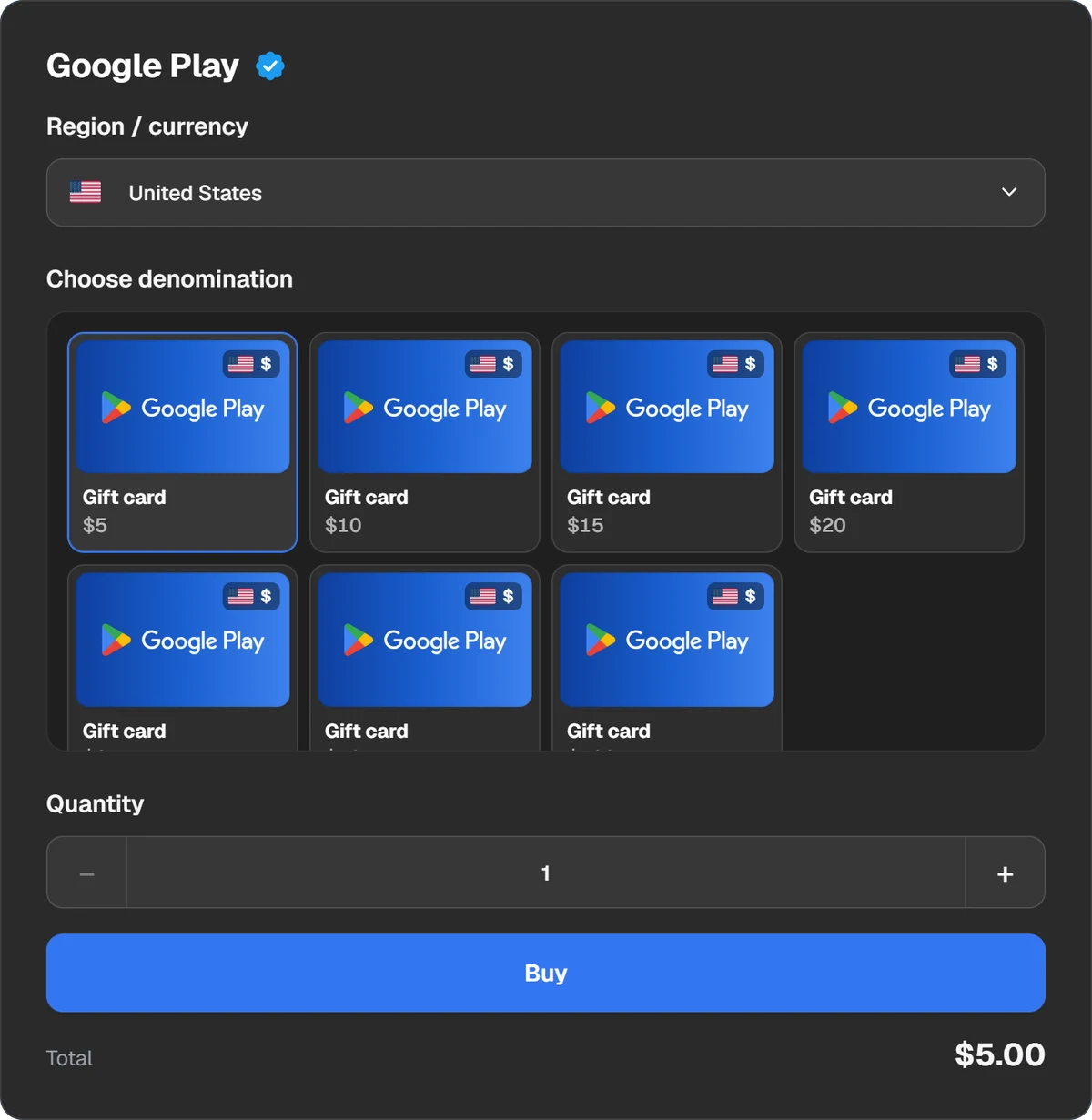
The card’s country must match your Google Play profile’s.
Pay
Press “Buy” and choose a coin or a wallet: USDT, TON, BTC and other coins, Binance, Walt or TON Connect.
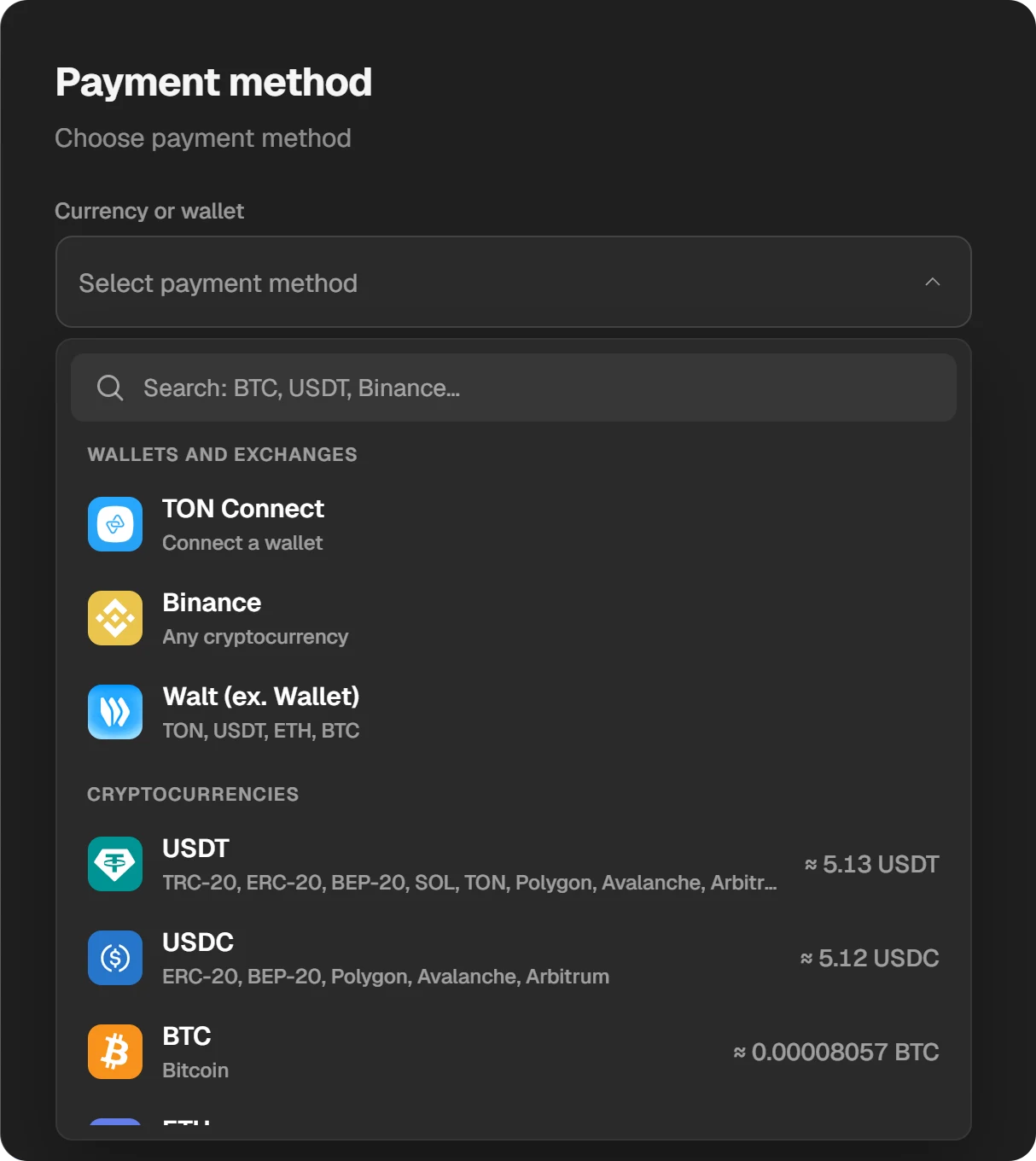
The amount needed in each coin is right in the list.
Enter the code in Google Play
The code appears in the order window and stays in “History” at the top of the site. Enter it under Redeem code, as described above.
Questions and answers
Which payment methods does Google Play accept?
It depends on the profile’s country. The common set is Visa, Mastercard, American Express and Discover cards and Google Play balance; some countries add carrier billing, PayPal and local methods.
How do I add a payment method in Google Play on a phone?
Open Google Play, tap the profile icon, choose Payments & subscriptions, Payment methods and Add a payment method. Only the methods available in your profile’s country are offered.
Does Google Play accept virtual cards?
Google lists virtual credit cards among unsupported payment methods.
Can I pay on Google Play from Russia?
Not with a profile set to Russia. Google Play paused its billing system for users in Russia on 10 March 2022, so purchases and subscriptions fail with any card.
Why is my card greyed out?
Either Google Play will not accept this card for the purchase, and you need another one, or the card was blocked as possibly stolen and has to be verified on payments.google.com.
How do I remove a card from Google Play?
Google Play, profile icon, Payments & subscriptions, Payment methods, More payment settings. Tap Remove under the card and confirm.
