Steam purchase history: when you bought a game or topped up
You need the purchase date to know whether a refund is still possible, when a gift arrived or where a top-up went. Steam keeps all of it, in different places. Here is where to find the date of a game, a wallet top-up and a gift.
In short
- Purchases and top-ups: your name at the top right → Account details → Purchase history.
- Games you did not buy on Steam (keys, free ones) are in the licences list: store.steampowered.com/account/licenses.
- Gifts: inventory → “...” → Gift history.
- On a phone, open the same pages in a browser.
- A top-up through a service by login is best checked on that service’s receipt. On Play Wallet every order in “History” has a dated receipt.
When you bought a game: purchase history
Open Account details
In the Steam client or on store.steampowered.com, click your name at the top right and choose Account details.
Click Purchase history
You see your Steam store purchases: date, item and amount.

The “View purchase history” button on the “Account details” page.
Find the game
The list goes from newest to oldest. Press Ctrl+F (Cmd+F on a Mac) and type the game’s name; the date at the start of the row is the purchase day.

Purchase history: the date, the item, the type, the amount and the balance after it. The rows in the picture are an example.
The same list is on the support site: help.steampowered.com → Purchases → full purchase history, where you can also request a refund.
The date matters for refunds: Steam refunds a game within 14 days of purchase if you played less than two hours. See How to get a refund for a game on Steam.
If the game is not in the purchase history
Purchase history lists what you paid for on Steam. Games activated with a key from another store, free games and received gifts may be missing. They are in the licences list:
- Open store.steampowered.com/account/licenses (or the licences and product key activations link on the Account details page).
- Sign in if Steam asks.
- Find the game with Ctrl+F. The row shows when the product was added and how it was acquired.
Steam top-up history
Top-ups made in Steam and redeemed wallet codes appear in the same Purchase history with a date and amount. How a top-up made by login through a service is labelled depends on how that service credits it, so its date and amount are best checked on the service’s receipt. On Play Wallet every order is kept in “History” at the top of the site, each with a receipt: order number, date, product, login, payment method and amount, on any device once you sign in.
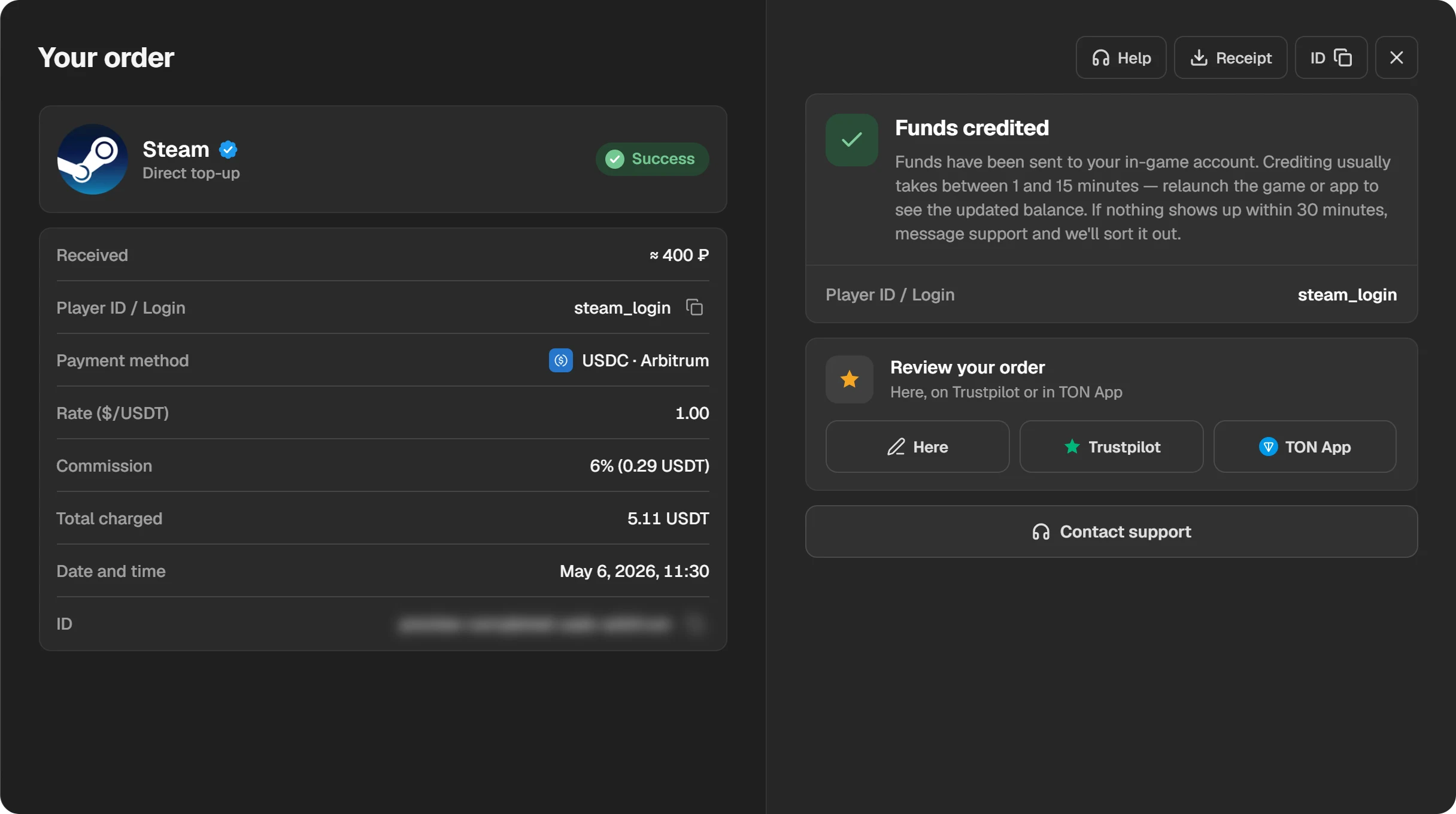
A Play Wallet order: date, amount, login and the Receipt button.
If a top-up never reached Steam: You topped up Steam and the money did not arrive.
Gifts, the Market and emails
| What you look for | Where |
|---|---|
| Gifts | Steam inventory → “...” → Gift history. In purchase history gifts carry a gift icon. |
| Market purchases and sales | At the top of the Community Market page or on Account details. |
| Any Steam purchase | Steam’s email receipt, sent to the account’s address after each purchase, with the date and the account name. |
| A key from another store | The licences list in Steam and that store’s receipt. |
On a phone
Open store.steampowered.com/account/history (purchases) or store.steampowered.com/account/licenses (licences) in the phone’s browser and sign in. Use “Find in page” from the browser menu to search.
How much have you spent in total?
That is a different question, answered on a separate Steam help page in US dollars: How to see how much you have spent on Steam.
If you need to add funds after checking the history, you can do it on Play Wallet by login: the dated receipt stays with the order.
Questions and answers
How do I see when I bought a game on Steam?
Your name → Account details → Purchase history; search the page for the game, the date starts the row.
The game is not in my purchase history. Where else?
In the licences list, store.steampowered.com/account/licenses: keys, free games and gifts are there too.
How do I see my Steam top-up history?
Top-ups in Steam and wallet codes are in Purchase history. Check a top-up through a service on its receipt.
How do I find when a game was gifted to me?
Inventory → “...” → Gift history. Gifted games also appear in the licences list, with the date they were added.
Can I see my purchase history on a phone?
Yes: open store.steampowered.com/account/history in the phone’s browser and sign in.
Where is the date of a Play Wallet top-up?
In “History” on the site: open the order and press “Receipt”.