How to see how much you have spent on Steam
Steam does not put your lifetime spending on the front page, but it has everything you need: a purchase history with every amount and a help-site page with a total in US dollars. Here is where to find them and how to add things up without mistakes.
In short
- Every purchase with its date and amount: your name at the top right → “Account details” → “View purchase history”.
- Steam counts the total in US dollars and shows it on the help site: help.steampowered.com/en/accountdata/AccountSpend.
- The Community Market and gifts have their own histories, separate from purchases.
- Keys from other stores and top-up service fees are not counted by Steam.
- The same total decides whether the 5-dollar limit is lifted from your account.
Way 1. Your purchase history
It lists every Steam store purchase: the date, what you bought and the amount in your wallet currency.
Open Steam
The Steam client or store.steampowered.com. On a phone, the browser is easiest.
Click your name at the top right
Choose “Account details” in the menu.
Click “View purchase history”
The list of your Steam store purchases opens.

Purchase history: the date, the item, the type, the amount and the balance after it. The rows in the picture are an example.
The same list is on help.steampowered.com: “Purchases”, then “View complete purchasing history”.
How to add it up correctly
- Do not count the same money twice. If the history shows a wallet top-up and a game paid from that wallet, it is the same money. Count either what you put in or what you bought.
- Subtract refunds. A refunded game is money not spent.
- Watch the currency. If your account’s region changed, some amounts may be in another currency. Convert them at Steam’s rate in the rates table.
- Paste it into a spreadsheet. The list is easy to select and paste into Excel or Google Sheets to get a sum.
Way 2. The spend total on Steam’s help site
In its help article on limited user accounts, Steam says your current spend can be viewed on the support site. Steam uses this total to decide whether the 5-dollar limit is lifted.
- Open help.steampowered.com/en/accountdata/AccountSpend.
- Sign in to Steam if asked.
- Read the total. Steam counts it in US dollars, converting purchases in other currencies at the daily rate.
This total is not the value of your library. Keys activated from other stores, gifts from friends and money from Community Market sales are not counted in it.
How the limit works and how much it takes to lift it: The 5-dollar limit in Steam.
What you spent versus what the account is worth
These are different numbers. Third-party calculators show what your library would cost at today’s store prices. You paid something else: some games came from sales, some were gifts or keys. What you actually paid shows only in your purchase history and in Steam’s spend total.
The Community Market and gifts
| What | Where to look |
|---|---|
| Community Market purchases and sales | At the top of the Market home page or on the Account details page. Steam also emails a receipt for every transaction. |
| Gifts you have sent | Steam inventory → “...” → “View Gift History”. |
| Steam store purchases | “Account details” → “View purchase history”. |
Spending for a year or a month
- Open your purchase history and select the rows for the period you need.
- Paste them into Excel or Google Sheets.
- If you are counting purchases, drop the wallet top-up rows, then add up the amount column.
- For the future, keep Steam’s receipts in an email folder: Steam emails you about every purchase.
What Steam counts in your spend
- Counted: wallet top-ups, game purchases in the Steam store, redeemed wallet codes, gifts you bought for others once they are accepted.
- Not counted: keys from other stores, free games and demos, gifts you received, money from Community Market sales that you spend.
- Refunds: if money went back to your card or you disputed a charge with your bank, Steam subtracts it. A refund to the Steam Wallet does not change the total.
What Steam’s history does not show
- Keys from other stores. Steam sees the activation, not the price. Look for receipts in your email and in that store’s account.
- Top-up service fees. Steam sees only the amount that reached the wallet. What you paid the service is in that service’s records.
Play Wallet top-ups are kept in “History” at the top of the site, and every order has a receipt with the date, product, login, payment method and amount. When you are signed in, the history is available on any device.
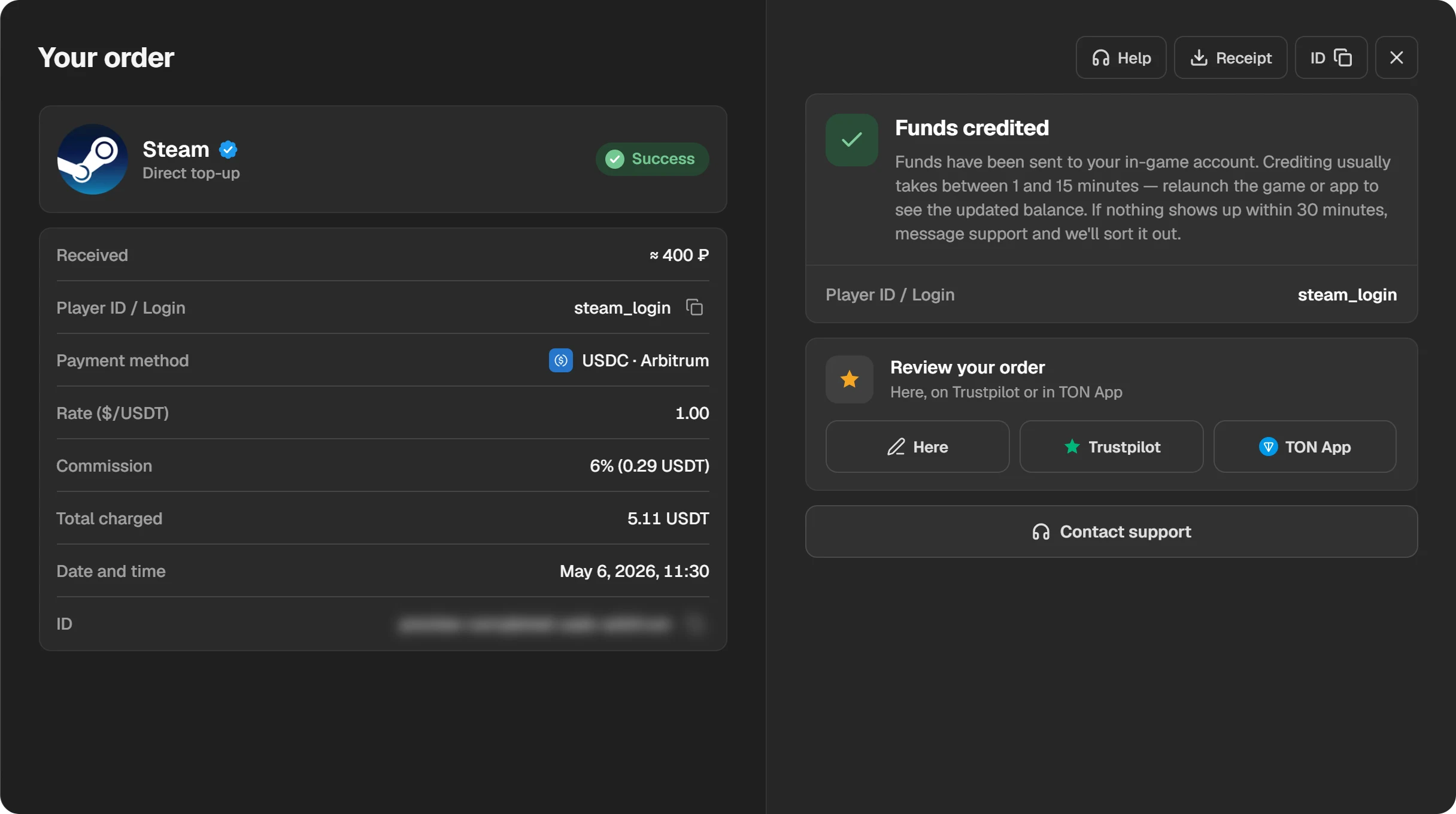
A Play Wallet order: amount, login, payment method and the “Receipt” button.
Questions and answers
How do I see how much I have spent on Steam?
Click your name at the top right of Steam, choose “Account details” and “View purchase history”. Steam shows a total in dollars at help.steampowered.com/en/accountdata/AccountSpend.
Can I check my Steam spending on a phone?
Yes. Open store.steampowered.com/account in the browser and tap “View purchase history”. The help-site page with the total opens in the browser too.
Why does the help-site total differ from my purchase history?
Steam counts it in dollars at daily rates and leaves some things out: keys from other stores and Community Market proceeds, for example.
How much have I spent on CS2 or Dota 2?
Add up two lists: that game’s purchases in your purchase history and its item deals in your Market history.
Where do I see my spend for the 5-dollar limit?
On the same Steam help-site page with your total. More in The 5-dollar limit in Steam.
Do refunds count in the spend total?
A refund to your card or a disputed charge is subtracted. A refund to the Steam Wallet does not change the total.