How to top up your Battle.net wallet with a balance code
You top up a Battle.net wallet with a Blizzard balance code, and the code must be in your account’s currency: euros or dollars. Check the currency first, then buy the code. Here is the whole way, step by step.
In short
- Your account’s currency shows in the Battle.net Shop: euro prices need a euro code, dollar prices a dollar code.
- Redeem the code on the Battle.net site, in the desktop app or in the phone app, under Redeem Code.
- The balance can hold up to €250 or $350, or €110 or $110 without an authenticator.
- On Play Wallet the code appears in the order window right after you pay.
First, check your account’s currency
A Battle.net balance is kept in one currency, set by the account’s country. Blizzard refuses a code in another currency with an error saying the code’s currency is not supported in your region.
- Sign in to the Battle.net app or battle.net.
- Open the Shop and look at any price.
- The sign next to it is your account’s currency: € is euros, $ is dollars.
Blizzard lets you change your account’s country when you actually live in another one. Any balance left is lost and cannot be exchanged. If the self-service change does not work, Blizzard asks for a utility bill with your name and new address. Do not use a VPN or someone else’s address.
What the Battle.net balance pays for
The Battle.net wallet is your Blizzard account balance. It pays in the Battle.net Shop for World of Warcraft, Diablo, Overwatch, StarCraft and Call of Duty games and add-ons, Hearthstone packs and in-game items.
A balance code is not tied to any game. It just adds money to the wallet; you decide later what to buy.
How to buy a code on Play Wallet
Choose the account’s currency
Open Battle.net top-up. In the Battle.net account currency field, choose EUR or USD. The “How to find your account currency?” link shows where to look.
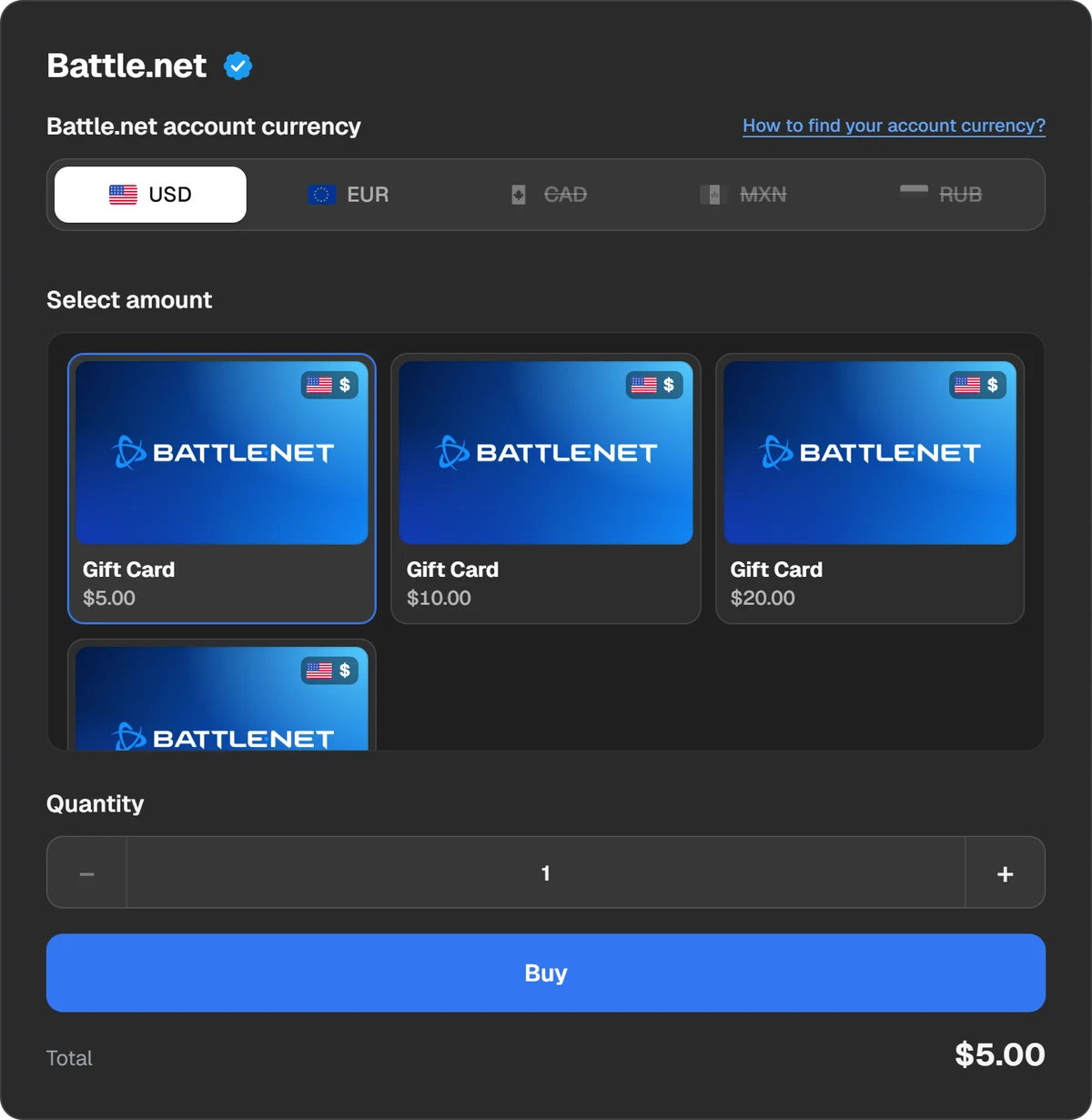
The account’s currency, the code value and the quantity.
Choose the value
Pick the code’s amount. Mind the balance limit: if the wallet already holds money, a large code may not fit. Several smaller codes are an option.
Pay for the order
Press Buy and the payment window opens. You can pay in USDT, USDC, BTC, TON and other coins, or through Binance, Walt and TON Connect. The fee is shown before you pay.
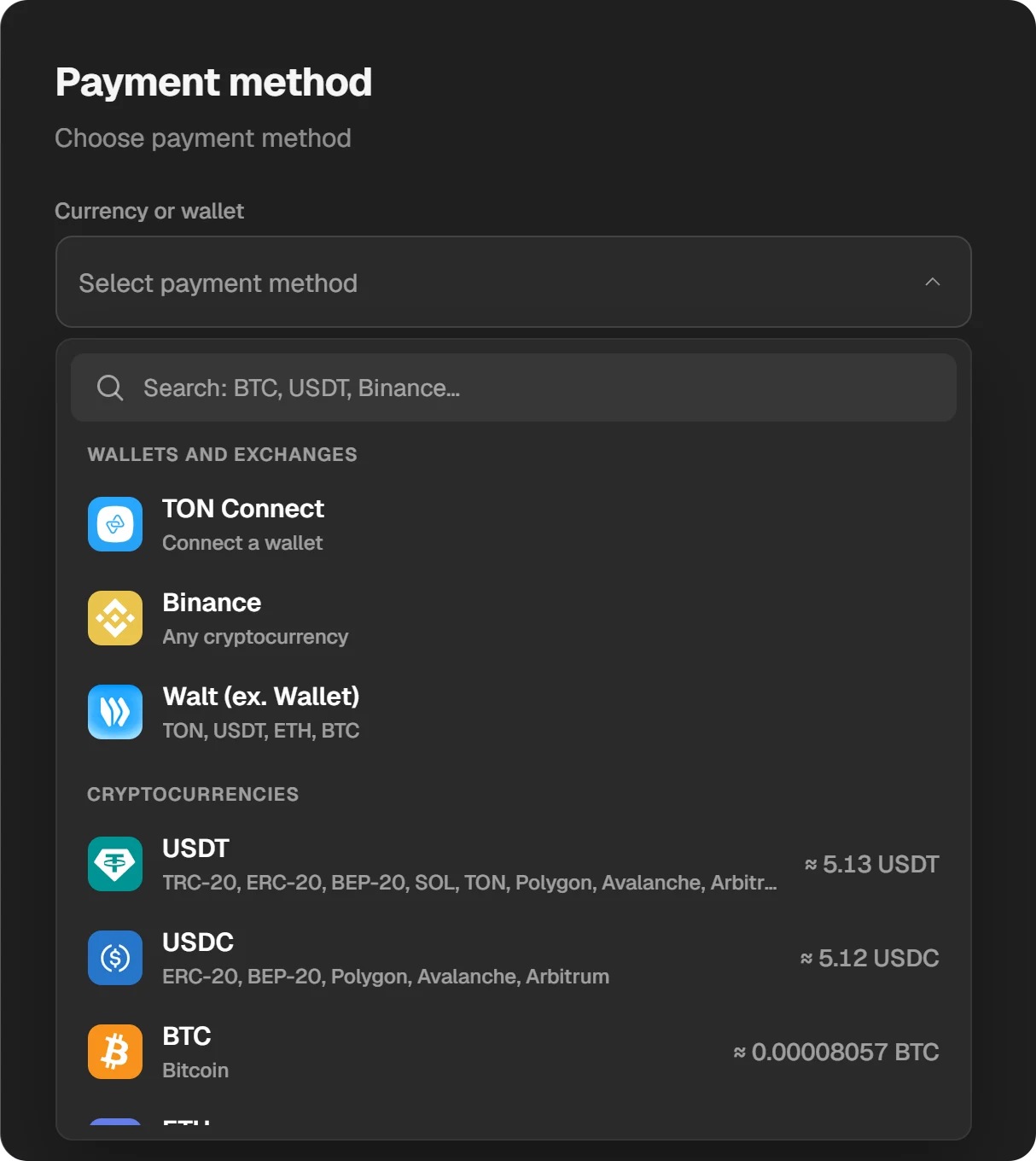
Choosing a coin or a wallet in the payment window.
Copy the code
When the order is done, the window shows the activation code with a Copy code button. It also stays in History at the top of the site.
How to redeem the code
Any of the three ways works; the money is in the wallet at once.
| Where | What to select |
|---|---|
| battle.net | Sign in, open Account Overview and enter the code in the Redeem a Code box. |
| Desktop app | Select your profile icon at the top right, then Redeem Code. |
| Mobile app | Open Profile, expand the Account section and choose Redeem Code. |
Check the amount on the confirmation screen and confirm. A redeemed code cannot be passed to another account, so check which account you are signed in to first.
Balance limits
Blizzard caps how much a Battle.net wallet can hold. A code that would go over the cap is refused.
| Account | Euros | Dollars |
|---|---|---|
| With an authenticator | €250 | $350 |
| Without an authenticator | €110 | $110 |
The Battle.net Authenticator raises the limit and also protects the account from theft, so it is worth adding anyway.
Check before buying
The currency in the Battle.net Shop
Euros or dollars. The code must be in exactly that currency.
What the balance already holds
The balance plus the code must stay under the limit: €250 or $350, or €110 or $110 without an authenticator.
That you are signed in to the right account
A redeemed code cannot be moved. With several accounts, check the email before redeeming.
Safety
- Redeem codes only on battle.net or in the Battle.net app, and check the address in the browser.
- A code seller never needs your login, password or authenticator code. Do not share them.
Common mistakes
- A code in the wrong currency. A dollar code will not go onto a euro account, and vice versa. Check the Shop’s prices before buying.
- Over the balance limit. Spend some money or add an authenticator, then redeem the code.
- The wrong account. If you have several, check the email you are signed in with.
If the code is refused for another reason, write to support with the order number. The ID button in the order window copies it.
Questions and answers
How do I find my Battle.net account’s currency?
Open the Shop in the Battle.net app or on the site. The sign next to the prices (€ or $) is your account’s currency.
Where do I redeem a Battle.net balance code?
On battle.net in the Redeem a Code box, in the desktop app through your profile icon, or in the mobile app under Profile.
How much can a Battle.net balance hold?
Up to €250 or $350; without an authenticator, up to €110 or $110.
Can I change my Battle.net account’s currency?
Only together with its country, if you have moved there. Any balance left is lost.
Can I top up a friend’s account?
Yes. Buy a code in their account’s currency and give it to them: they redeem it themselves.