How to pay an order with Binance Pay
Binance Pay takes the money straight from your Binance account balance. You do not choose a network or copy an address, and you can pay with any coin you hold on the exchange. Here is how it looks in the Play Wallet payment window and in the Binance app.
In short
- In the payment window, choose Binance under “Wallets and exchanges” and press Pay.
- A Binance Pay page opens: scan its QR code with the Binance app or log in.
- Choose the coin and confirm with your Pay PIN or two-factor check.
- No network, address or withdrawal fee: the money never leaves the exchange for the blockchain.
- You need a verified Binance account in a country where Binance Pay works.
What Binance Pay is
Binance Pay is a payment method inside the Binance exchange. You pay a shop from your account balance, much like a transfer between two Binance users. Nothing goes on chain, so there is no network to pick, no address to copy and no withdrawal fee.
In the Play Wallet payment window the method is labelled “Any cryptocurrency”. The order total is shown in USDT, and you can pay it with USDT, BTC, BNB or another coin from your balance; Binance works out how much you need.
What you need
- A verified Binance account. Binance says Binance Pay requires a completed identity check (KYC) and works only for eligible users in supported countries.
- A Pay PIN. You set it when you first set up Binance Pay, and it confirms every payment. It locks after five wrong tries.
- Coins on your balance worth at least the “Total to pay”.
- The Binance app on your phone, or a Binance login in the browser.
If Binance Pay is not available to you, pay with USDT from another exchange, through the Walt wallet or with TON Connect. How to choose a USDT network: Which USDT network to choose.
Step by step
Place the order
Choose a product, for example a Steam top-up by login or Telegram Stars by username, and set the amount or pack. The total and the service fee are shown before you pay. Press the buy button to open the payment window.
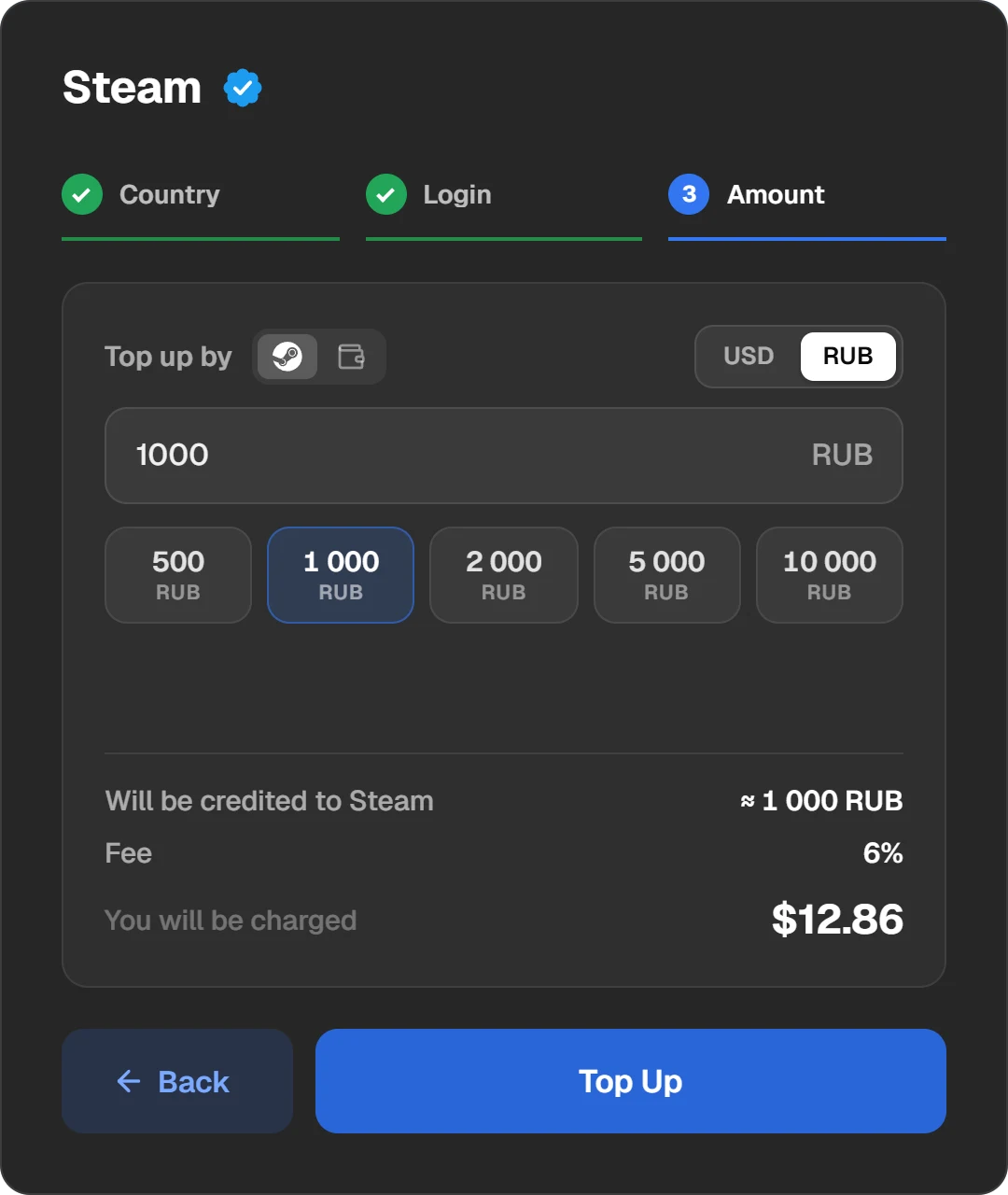
The order form: what you buy and for how much.
Choose Binance
Open the “Currency or wallet” field and pick Binance under “Wallets and exchanges”, labelled “Any cryptocurrency”. If Binance is missing, it is not available for this product right now: the methods depend on the product.
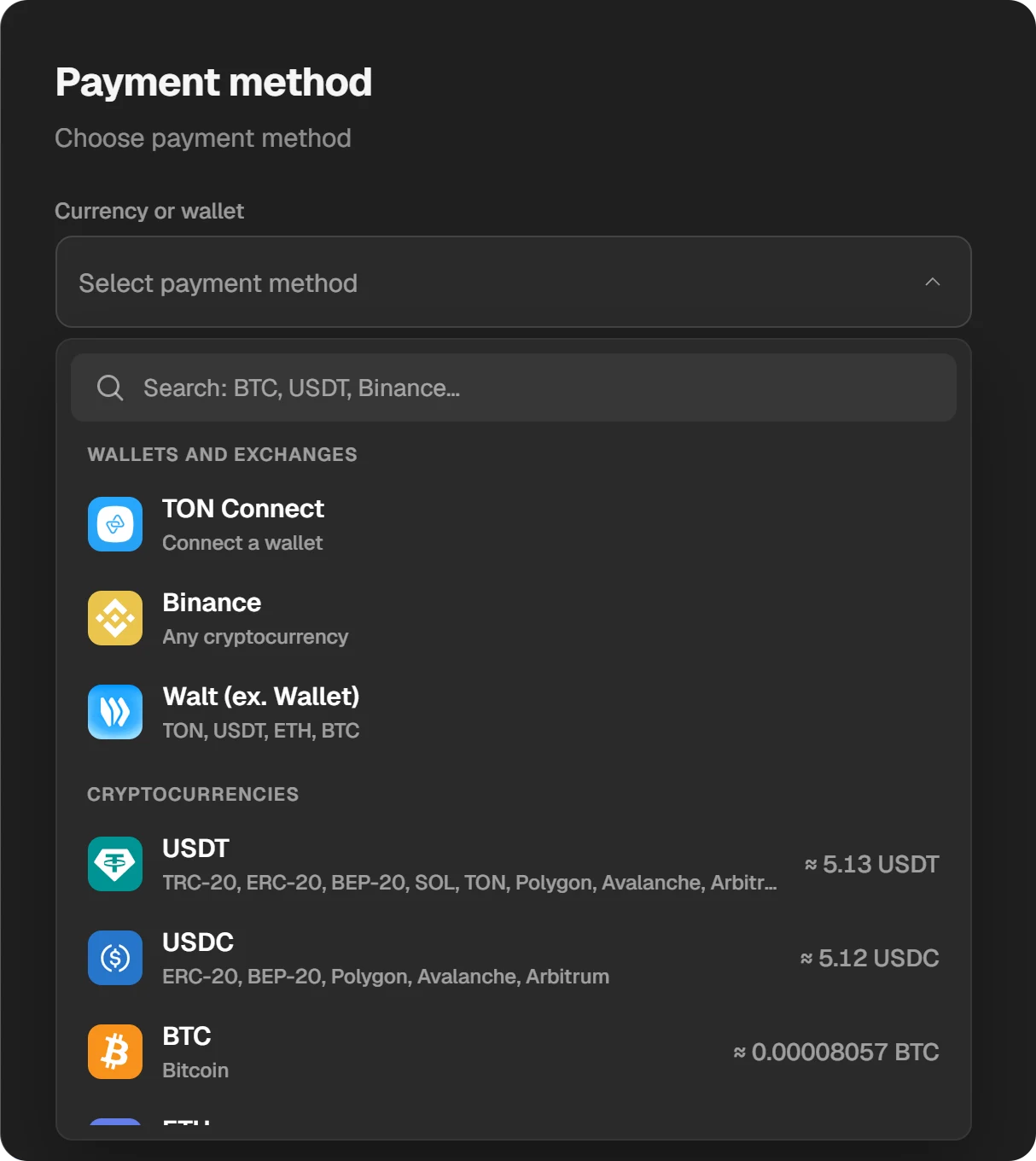
Binance, Walt and TON Connect at the top, coins below.
Press Pay
Check the login, ID or username and the amount on the right. The button shows the total in USDT. A Binance Pay page opens in a new tab, and the order window moves on to the payment status.
Sign in to Binance
On a computer the Binance Pay page shows a QR code. Open the Binance app, tap the scanner on the home screen and point it at the code, or log in on the page itself. On a phone the page offers to open the Binance app.
Choose the coin and confirm
Binance shows the payment. Choose the coin to pay with, check the details and tap Confirm, then enter your Pay PIN or pass the two-factor check.
Wait for “Done”
Go back to the order tab. The window notices the payment by itself; no need to refresh. The status goes Created, Paid, Topping up, Done. For a gift card the third step is Issuing, and the code appears in the order window.
You can close the order window at any time: the order stays in History at the top of the site and updates by itself.
Which coin is taken
Binance first uses the coin at the top of your Binance Pay priority list. If it is not enough, it adds other coins in your order. To pay with a particular coin, tap the arrow next to the currency on the payment screen and drag that coin to the top. Binance says this applies to the current payment only.
Binance Pay or a USDT withdrawal
| Binance Pay | USDT withdrawal | |
|---|---|---|
| Network and address | Not needed | Choose a network, paste the address |
| Withdrawal fee | None, nothing goes on chain | Charged by the exchange, out of the amount |
| Pay with | Any coin on the balance | The coin you chose |
| Waiting | No network confirmations | Until the network confirms |
| Room for mistakes | Very little | Wrong network, short amount |
If Binance Pay is out of reach but you hold USDT on another exchange, choose USDT and the network you will withdraw on. The full walk-through is in How to top up Steam with crypto.
Common problems
- The Binance tab did not open. The browser may have blocked the new window. Allow pop-ups for the site and press Pay again.
- Binance asks for verification. Binance Pay does not work without it. Verify in the app or choose another method.
- Pay PIN locked. It locks after five wrong tries; Binance says you can try again after five hours.
- Not enough funds. Binance checks the total value of the coins on your balance. Add funds or pay another way.
- You closed the Binance page before paying. Open the order in History and pay again.
Paid, but the order still waits
- Check in the Binance app that the payment went through: it is in your Binance Pay history.
- Open the order in History on the site and give it a few minutes; the status updates by itself.
- If nothing changes, write to support with the order ID. The ID button in the order window copies it. See also I have paid, but the order still waits.
Questions and answers
Do I need to choose a network with Binance Pay?
No. Binance Pay moves the money inside the exchange, so there is no network or address.
Which coins can I pay with?
Any coin Binance Pay accepts that you hold. The order total is in USDT; Binance converts it into the coin you choose.
Is there a fee?
The service fee is already part of “Total to pay” and is shown before you pay. There is no on-chain withdrawal fee, because nothing leaves the exchange.
Why is Binance not in the list?
The payment methods depend on the product. If Binance is missing, choose a coin such as USDT or another wallet from the list.
Do you need my Binance password?
No. You sign in to Binance only on Binance’s own page or in its app. Never enter your exchange password on other sites.