Robux and kids: how parents control spending in Roblox
Roblox gives parents their own settings: a monthly spending limit, emails about purchases, approval of Robux transfers and the child’s balance in view. Here is how to turn each on, what changes with age, and how to agree on Robux without arguments.
In short
- You need your own Roblox account linked to your child’s. You confirm you are 18+ with an ID, a credit card or a face age check.
- The monthly limit is in Settings → Parental controls → your child → Spending restrictions, from 0 to 10,000 in your currency.
- The limit applies until 13 and does not restrict gift cards. It may not apply on consoles.
- Spending emails: every purchase, or only high-spend alerts.
- For children under 16, a parent approves every Robux transfer.
Two ways to manage settings
| Linked parent account | Parent mode | |
|---|---|---|
| What you need | Your own Roblox account linked to the child | Only the child’s device |
| Where you manage from | Any device of yours | The child’s device |
| Spending emails | Yes | No |
| Approving requests | Yes | Yes, with a 6-digit PIN |
Roblox is rolling Parent mode out gradually, so you may not have it yet. Spending notifications always need a linked account.
How to link a parent account
Open settings on the child’s account
On a computer, select the gear at the top right. In the app, select More at the bottom right, then Settings.
Add a parent
Open Parental Controls and select Add parent. Sign in to your own Roblox account or create one.
Verify your age
Roblox asks you to prove you are 18+ with an ID, a credit card or a face check.
Agree to link
The page refreshes by itself. Select Agree and the accounts are linked. Both parents can link to the same child, each from their own account.
If Roblox already emailed you asking to approve something for your child, you can link from that email. Your account’s email must match the one the request came to.
How to set a spending limit
- Sign in to your parent account and open Settings → Parental controls.
- Choose your child’s account and scroll to Settings you manage.
- Select Spending restrictions, then Monthly spending limit.
- Enter an amount from 0 to 10,000 in your currency and select Update. Zero blocks spending completely.
- It resets at the end of every month. Unspent amounts do not roll over.
- Gift cards are not affected. Your child can redeem a Roblox card code under any limit.
- It may not apply on consoles. On Xbox, limit purchases in the Xbox settings.
- From 13 the limit no longer applies. You can keep getting spending emails.
Spending notifications
In the same Spending restrictions section, choose what you are emailed about:
- All transactions: an email for every purchase.
- High spend alerts: an email when monthly spending reaches $100, $250 and $500 (or the local equivalent), then every tenth transaction. On by default.
- None: no emails, though the payment processor or subscriptions may still notify you.
Your child’s Robux and transfers
Under Settings → Parental controls → your child, the Robux section shows the balance. Add Robux buys Robux straight onto their account, and Manage handles transfers:
- Transfer limits: your own limits, up to 500 Robux a day and 1,000 a month.
- Approvals: Always ask, to approve every transfer, or Always allow for trusted friends, with a notice to you.
- History: all past transfers.
Children under 16 can only send or receive Robux with a parent’s approval in any case. More on transfers in How to give Robux to a friend.
What changes with age
- Under 13: the parent manages almost everything: spending, screen time, friends, chat.
- From 13: the child manages their own screen time and blocking, and spending limits no longer apply.
- From 16: the parent keeps notifications, spending emails and weekly activity updates.
Protect the app store too
On a phone or console, purchases may go through the App Store, Google Play, Xbox or PlayStation. Roblox suggests turning on password-protected purchasing there. If a purchase went through without asking, see Can you get Robux back for an item.
Robux on a set budget
An easy way to give Robux without worrying about your card: a Roblox gift card for a set amount. Your child gets exactly what you decided, and no bank card goes on the account.
Choose a card
Open Roblox and pick a card with the Robux you want or an amount in dollars or euros. No Roblox password needed.
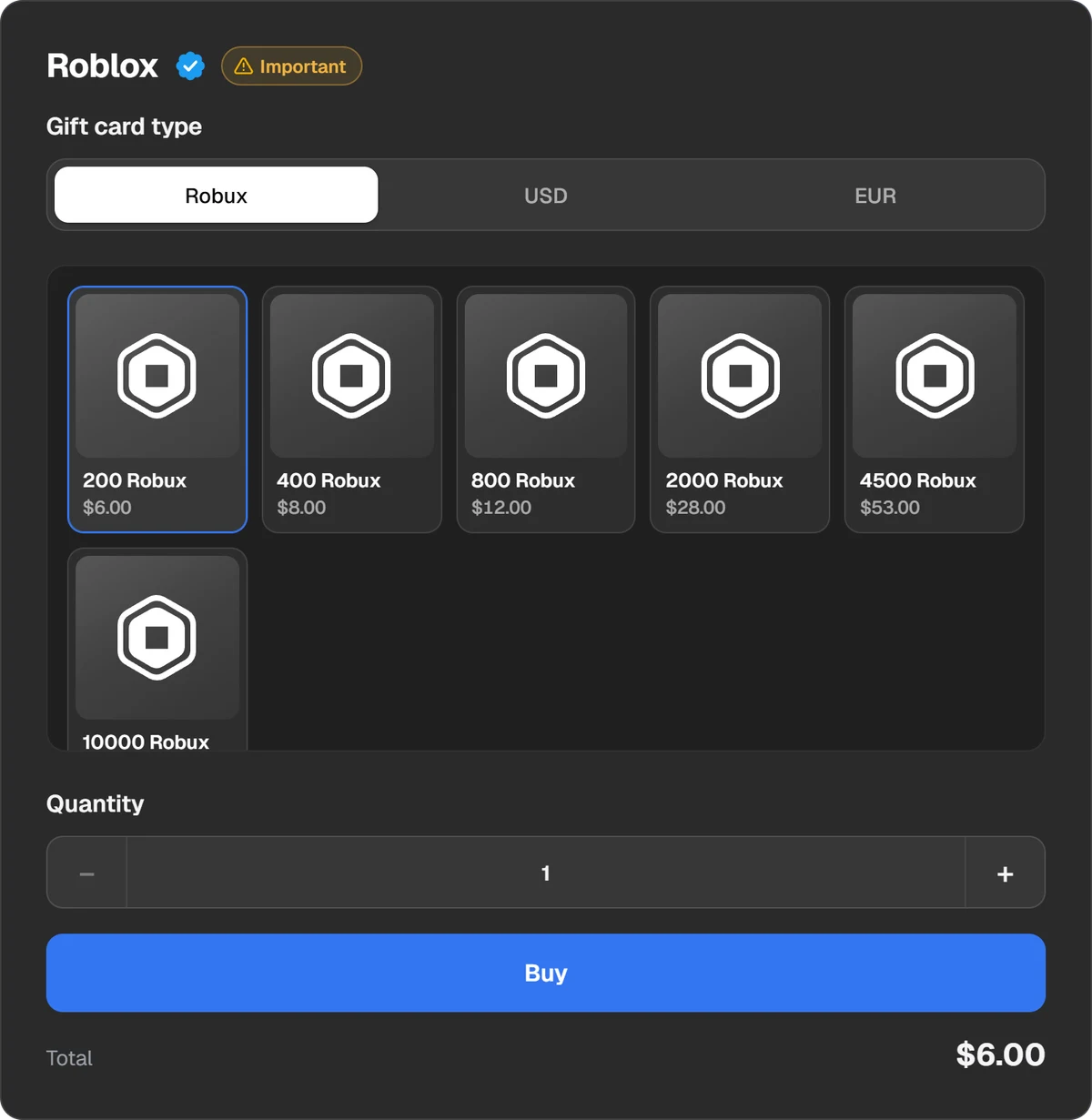
Roblox gift cards. The price is shown before you pay.
Pay
You pay with crypto: USDT, TON, BTC and other coins, or through Binance. The total and the fee are shown before you pay.
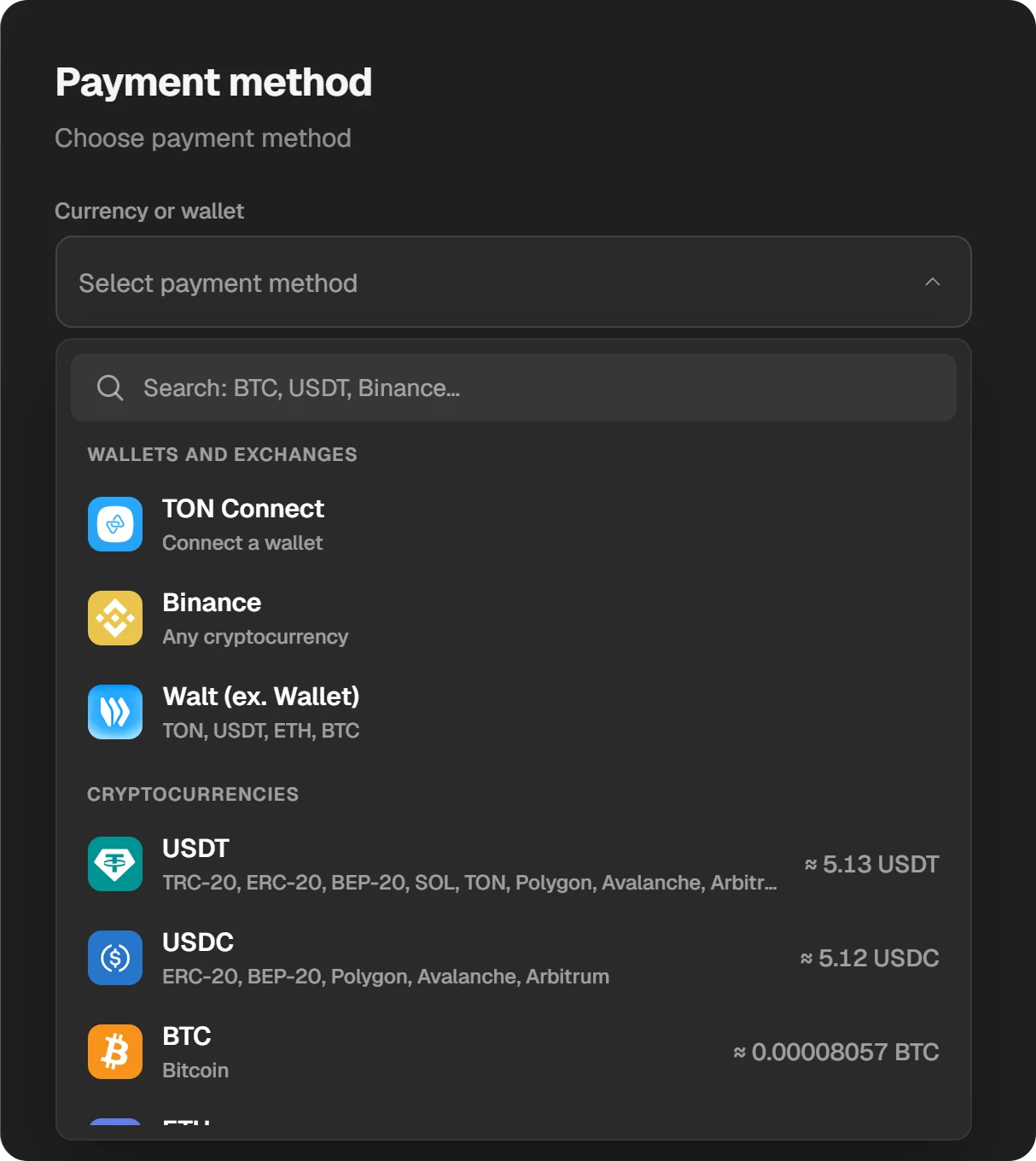
The amount in each coin is right in the list.
Redeem it together
The code appears in the order window and stays in “History” at the top of the site. Redeem it at roblox.com/redeem while signed in to your child’s account. A redeemed code cannot be returned, so check the account.
For kids: how to ask your parents for Robux
- Say exactly what for. “I want a 400-Robux skin” is clearer than “give me money for Roblox”.
- Suggest a limit, such as one card a month. Parents relax when the amount is known.
- Show you know the rules. Your password is for no one, “free Robux” does not exist, and you sign in only on roblox.com.
- Never use a parent’s card without asking. Roblox treats that as breaking its rules and can close the account.
Questions and answers
How do I limit purchases in Roblox?
In the parent account: Settings → Parental controls → your child → Spending restrictions → Monthly spending limit, from 0 to 10,000 in your currency.
Do I need my own Roblox account?
For spending emails, yes. Without one, you can use Parent mode on your child’s device, if it is available to you.
Does the limit restrict gift cards?
No. Roblox says the monthly limit does not affect gift card redemption.
Why did the limit stop working?
Spending limits stop at 13. They may also not apply on consoles, where you set limits in the console’s own settings.
Can I stop my child sending Robux?
Under 16, a parent already approves every transfer. In Robux → Manage you can also lower the limits and choose Always ask.